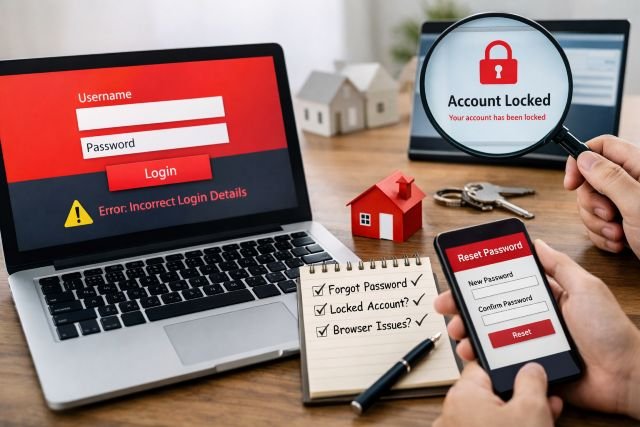
When you’re trying to submit a case, check an update, or pull criteria for a client call, a santander for intermediaries login problem can feel like a full stop on your working day. The frustrating part is that the error message is often vague, even though the underlying cause is usually simple: the wrong portal, a browser cookie issue, a stored password that’s out of date, or an account lock triggered by repeated attempts.
- Understanding the “Santander for Intermediaries” ecosystem
- Santander for intermediaries login basics you should verify first
- Common Santander for intermediaries login errors and what they usually mean
- A practical troubleshooting flow that won’t trigger more lockouts
- Why security controls are getting stricter, and why that affects you
- FAQs about Santander for Intermediaries login
- Conclusion
This article is a practical, broker-focused walkthrough of what to do when santander for intermediaries access isn’t working. You’ll learn what the most common errors typically mean, how to fix them quickly, and how to reduce the odds of it happening again. I’ll also point you to reputable sources and official pages so you can double-check details and avoid lookalike sites.
Understanding the “Santander for Intermediaries” ecosystem
A big reason intermediaries get stuck is that Santander has more than one relevant online destination, and they don’t all behave the same way.
Santander’s main information hub for intermediaries is the official Santander for Intermediaries website. That’s where brokers typically look for products, criteria, calculators, forms, and help content.
There is also a secure area used for submitting and tracking business through Santander’s introducer platform, commonly referred to as Introducer Internet. Santander describes this area as a place where intermediaries can submit new mortgage applications, track applications, and create illustrations, and it’s explicitly intended for intermediaries and investment professionals.
In addition, you may encounter a separate login endpoint for intermediaries on a different domain. If you land on a page that looks like an intermediary login gateway, you’re likely seeing an authentication entry point rather than the general info hub.
The takeaway is simple: before troubleshooting “your password,” confirm which Santander site you’re actually trying to access. If the portal expects an introducer ID, password, and passcode, but you’re entering details from a different Santander service, you can be locked out surprisingly fast.
Santander for intermediaries login basics you should verify first
Most login issues can be narrowed down in minutes if you do a few sanity checks. Start by confirming you are on an official Santander domain and that your bookmark is current. A legitimate Introducer Internet login page, for example, clearly asks for an introducer ID, password, and a passcode, and it explains that the passcode is a five-digit number issued after initial registration (and that you may have changed it).
Next, test the login in a private or incognito window. This doesn’t “fix” your account; it simply bypasses stored cookies and cached session data that can cause loops and blank screens. If incognito works, your issue is nearly always local to the browser rather than your Santander account.
After that, try a second browser. A meaningful percentage of authentication failures are caused by extensions or privacy settings that block redirects or scripts. Switching browsers helps you isolate that quickly, without burning through repeated login attempts.
Common Santander for intermediaries login errors and what they usually mean
Incorrect details when you’re sure they’re correct
This is the classic broker complaint: “I know it’s right, but it says it’s wrong.” In real life, that message often means the portal is receiving something different from what you think you typed.
One common cause is credential mismatch across portals. Introducer Internet, for instance, expects an introducer ID, password, and a five-digit passcode. If you try to log in without the passcode, use an incorrect format, or accidentally enter a mobile banking PIN instead, you’ll get rejected even if your password is correct.
Another cause is password manager interference. If your browser or password manager autofills an older password into the same username field, the page will submit the wrong combination while you assume it’s the current one. This is why incognito mode is so effective as a diagnostic step: it strips away autofill and saved sessions.
A third cause is keyboard input problems, especially on shared devices. Caps Lock, different keyboard layouts, and copy/paste issues can all lead to invisible character differences. If you suspect this, typing the password and passcode manually is safer than pasting.
Locked out after multiple attempts
Lockouts exist for a reason, but they can be painful when you’re trying to complete urgent client work. The critical detail here is that not every Santander system uses the same recovery method.
On Santander’s Introducer Internet login page, there’s a clear warning: if you have forgotten your password, you will need to re-register to use the site, and it provides a “Register as a new user” option.
That matters because some people keep searching for a “reset password” button that doesn’t exist for that specific path, then burn more attempts and extend downtime. If you see a message like this on the official login page, the fastest route is usually to follow the platform’s stated recovery flow rather than guessing.
If you’re part of a firm where one administrator manages access, it may also be worth checking your internal process for credential updates and account ownership. On many corporate systems, a mismatch between who “owns” the account and who uses it day-to-day is what causes recurring lockouts during staff changes.
Blank page, loading loop, or repeated redirects back to login
When the page won’t load correctly, or you get thrown back to the login screen repeatedly, it’s rarely your password. It’s usually the browser session failing to persist, often due to cookies being blocked or corrupted.
This problem is especially common after browser updates, privacy setting changes, or the installation of security extensions. Clearing cookies for the Santander domain you’re using can resolve it immediately. If you want a safer workflow for your readers, you can publish an internal help article on your own site explaining how to clear cookies for a single site, then link to it from your Santander login help page.
Also consider network security tools. If your brokerage operates behind strict corporate firewalls or proxy services, authentication redirects can break. A quick test on a mobile hotspot can confirm whether the issue is network-level.
Browser compatibility and “it works on one machine but not another”
Modern banking platforms are strict about browser security. Santander’s own technical requirements guidance for online services emphasizes using supported browsers and applying the latest software and security updates. It also lists minimum versions for common browsers, underscoring that older setups can create unpredictable issues.
Even if that technical requirements page is associated with a different Santander service area, it reflects a broader reality across financial platforms: outdated browsers and unpatched systems are more likely to fail security checks or break critical scripts. If a broker can log in on one machine but not another, suspect browser version differences, blocked scripts, or profile-specific extensions before you suspect the account itself.
Passcode confusion on introducer portals
Passcodes are often where intermediaries get tripped up, because many people assume “passcode” means an SMS code or a banking app PIN. On Santander’s Introducer Internet login page, the passcode is described specifically as a five-digit number issued following initial registration, and it notes that you may have changed it.
So if a user tries to enter an SMS one-time code, a device PIN, or a password manager-generated OTP, it won’t match what the portal expects. In practice, the fastest fix is to confirm the credential type required by that specific page and then follow that system’s stated recovery approach if the passcode can’t be retrieved.
A practical troubleshooting flow that won’t trigger more lockouts
The safest way to troubleshoot is to reduce “trial and error” attempts. Start by verifying the correct official login page and confirming whether the portal requires a passcode in addition to a password.
Then isolate the environment. Use incognito mode, disable extensions temporarily, and test a second browser. If login succeeds in a clean session, stop and fix the browser environment before returning to your normal workflow. This prevents the same issue from reappearing mid-case.
If you suspect a lockout, avoid repeated attempts. The Introducer Internet login page explicitly signals that password-forgotten scenarios require re-registration for access.
Why security controls are getting stricter, and why that affects you
It’s worth understanding why portals feel less forgiving now than they did a few years ago. Fraud pressure is a major reason financial institutions harden authentication, shorten session times, and enforce lockouts.
UK Finance’s Annual Fraud Report 2023 highlights that over £1.2 billion was stolen through fraud in 2022. Separately, reporting on UK Finance’s 2023 figures has described losses of £1.17 billion in 2023, showing the scale of the problem and why security experiences remain tight for end users.
On the cyber side, the UK’s Suspicious Email Reporting Service has received more than 32 million suspicious email reports since launch, leading to the removal of hundreds of thousands of malicious web addresses. That matters for intermediaries because phishing often impersonates lender portals, and “login help” content is a common lure.
If you want to protect your firm and also reduce access problems, the best habit is to rely on bookmarks you created from official sources and avoid clicking login links from emails. For phishing reporting, the NCSC provides guidance on how to report scam emails, and UK police reporting guidance also points people to forward suspected phishing to the official reporting address.
FAQs about Santander for Intermediaries login
Why does Santander for intermediaries keep rejecting my login?
Most rejections come from using the wrong portal or entering the wrong credential type for that portal. Santander’s Introducer Internet login, for example, expects an introducer ID, password, and a five-digit passcode, so missing or mismatching that passcode will cause failure even if the password is correct.
What is the passcode on Santander Introducer Internet?
The official login page describes it as a five-digit number issued following initial registration, and it notes you may have changed it. It is not necessarily the same as a mobile banking PIN or a one-time SMS code.
I forgot my password. Can I reset it?
For Introducer Internet, the login page itself indicates that if you have forgotten your password you will need to re-register to use the site. That’s why it’s important to follow the recovery method shown on the exact page you’re using, rather than assuming there is a universal reset flow.
Which browser should I use if the portal isn’t loading?
Use a modern, fully updated browser and test in a clean session. Santander’s technical requirements guidance for its online services lists supported browsers and emphasizes applying the latest software and security updates, which aligns with the reality that outdated browsers can fail authentication or page scripts.
How can I tell if a Santander login page is fake?
Be cautious of links from emails or ads, and prefer bookmarks saved from official Santander domains. If you suspect phishing, the NCSC provides official reporting guidance, including reporting scam emails, and UK police reporting guidance also directs suspicious emails to the national reporting address.
Conclusion
A smooth santander for intermediaries workflow depends on two things: knowing which Santander portal you’re meant to be using, and keeping your browser environment clean enough to complete modern authentication. If you’re seeing login errors, start by confirming the official page you’re on, then isolate the browser session with incognito mode and a second browser, and avoid repeated “guess attempts” that can trigger lockouts. If you’re using Introducer Internet specifically, remember that the login page itself highlights the five-digit passcode requirement and indicates re-registration is needed if the password is forgotten.