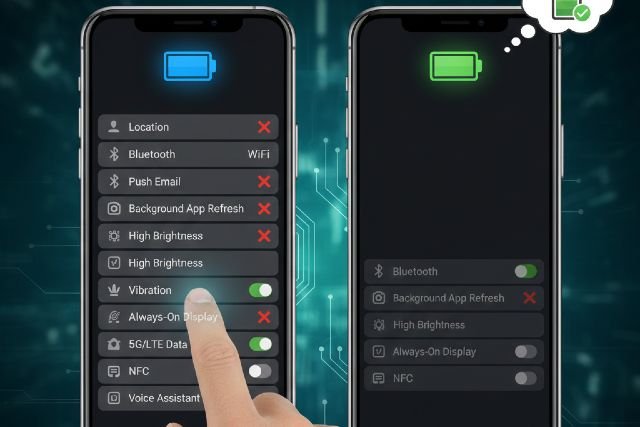
If your phone’s battery seems to drain faster than expected, the problem is rarely the battery itself. In most cases, your smartphone hides several power-hungry settings deep inside system menus. These features quietly run in the background, checking locations, scanning networks, refreshing apps, and waking the screen — often without you realizing it.
- Why hidden settings drain your battery
- 1. Background app refresh and unrestricted activity
- 2. Location access set to “Always”
- 3. Wi-Fi scanning when Wi-Fi is off
- 4. Bluetooth scanning in the background
- 5. 5G always-on network mode
- 6. Always-On Display
- 7. High refresh rate displays
- 8. Push email and frequent syncing
- 9. Excessive notifications
- 10. Personal hotspot left enabled
- 11. Voice assistants always listening
- 12. Automatic syncing and background downloads
- Conclusion
Modern smartphones are designed to feel seamless and “always ready,” but that convenience comes at a cost. Apple and Google both confirm that background activity, frequent syncing, and continuous scanning can significantly reduce battery life. The good news is that once you know where these hidden settings live, you can take back control and noticeably extend your daily battery performance.
Why hidden settings drain your battery
Battery drain happens when your phone continues to work even while you are not actively using it. Every background task wakes the processor, activates wireless radios, or keeps the display partially active. Individually these actions consume small amounts of power, but together they prevent your phone from entering deep sleep, which is essential for long battery life.
Android’s developer documentation explains that background Wi-Fi and Bluetooth scans wake the CPU, while Apple notes that background app refresh, frequent mail fetching, and system animations all increase power usage. These behaviors are useful in moderation, but excessive use shortens battery endurance over time.
1. Background app refresh and unrestricted activity
One of the biggest hidden battery drainers is background app activity. Many apps update feeds, sync data, or upload content even when you are not using them. This constant background processing keeps both the processor and network radios active.
On iPhone, Background App Refresh allows apps to update content when running in the background. On Android, apps can be set to unrestricted background usage, which Google explicitly warns may consume more battery. Limiting background activity for non-essential apps often leads to immediate improvements in battery life.
A common example is social media apps that refresh content throughout the day, even if you only open them a few times. Restricting background access for rarely used apps can recover hours of standby time.
2. Location access set to “Always”
Location services are extremely useful, but they are also one of the most power-intensive features on any smartphone. When apps have permission to access your location at all times, your phone frequently activates GPS, Wi-Fi positioning, and cellular triangulation.
Android’s official guidance recommends using lower-power location modes and avoiding unnecessary background location access. On both iPhone and Android, switching most apps from “Always” to “While Using” dramatically reduces battery drain without affecting normal app functionality.
Navigation and safety apps may justify constant access, but most shopping, social, and utility apps do not need your location when you are not actively using them.
3. Wi-Fi scanning when Wi-Fi is off
Many people assume turning off Wi-Fi stops all Wi-Fi-related activity. In reality, your smartphone often continues scanning for nearby networks to improve location accuracy and speed up reconnections.
Android documentation confirms that background Wi-Fi scanning wakes the CPU and consumes power even when Wi-Fi appears disabled. This setting is typically hidden under Location Services rather than Wi-Fi settings, which is why many users never turn it off.
Disabling Wi-Fi scanning slightly reduces indoor location precision but can noticeably improve standby battery life.
4. Bluetooth scanning in the background
Similar to Wi-Fi scanning, Bluetooth scanning can remain active even when Bluetooth is toggled off. This allows faster device discovery, tracker detection, and location services, but it also means your phone continues searching for nearby devices.
On Android, Bluetooth scanning can be disabled through Location Services. On iPhone, using Control Center to turn off Bluetooth does not fully disable it, which Apple explains in its support documentation. For maximum battery savings, Bluetooth should be turned off directly in Settings when it is not needed.
5. 5G always-on network mode
While 5G offers faster speeds, it often consumes more battery than 4G LTE, especially in areas with weak coverage. Testing referenced by Ookla has shown that 5G can increase battery drain by approximately 6 to 11 percent compared to LTE, depending on the device and network conditions.
When signal strength fluctuates, your phone constantly switches between network bands, which further increases power consumption. Apple notes that Low Power Mode can disable 5G on most devices, and Android allows users to manually select preferred network types.
Switching to LTE in low-signal areas can significantly improve battery stability.
6. Always-On Display
Always-On Display keeps part of your screen active at all times to show the clock, notifications, or widgets. While manufacturers optimize this feature, the display remains one of the most power-hungry components of a smartphone.
DXOMARK has analyzed the impact of Always-On Display on battery autonomy and confirms that keeping the screen partially active reduces overall endurance. Disabling this feature or limiting it to specific hours can save noticeable battery over the course of a day.
7. High refresh rate displays
High refresh rate screens, such as 120Hz or 144Hz, make scrolling and animations smoother, but they also increase GPU and display power usage. Apple explicitly states that Low Power Mode limits refresh rate on ProMotion devices, acknowledging the battery impact of higher refresh rates.
On Android devices, switching from constant high refresh to adaptive or standard refresh reduces unnecessary screen redraws when smooth motion is not needed. This adjustment is especially effective for users who spend long periods reading or browsing static content.
8. Push email and frequent syncing
Email accounts that use push notifications or frequent fetch intervals keep your phone connected to servers throughout the day. Each check wakes the network radios and prevents the device from staying in low-power states.
Apple confirms that Low Power Mode reduces Mail fetch frequency, while Android allows users to adjust sync intervals per account. Switching non-critical email accounts to manual or longer fetch intervals can significantly reduce background drain.
9. Excessive notifications
Every notification wakes your screen, triggers vibration or sound, and briefly activates system processes. While individual notifications consume little power, dozens or hundreds per day add up quickly.
Both iOS and Android offer notification summaries and per-app controls. Reducing unnecessary notifications not only saves battery but also improves focus and reduces screen time.
10. Personal hotspot left enabled
When hotspot or tethering is active, your phone simultaneously uses cellular data and broadcasts a Wi-Fi signal. This combination creates one of the highest power drains on a smartphone.
Many users forget to disable hotspot after using a laptop or tablet, leading to unexplained battery loss. Turning it off when not actively sharing data prevents this silent drain.
11. Voice assistants always listening
Wake-word features like “Hey Siri” or “Hey Google” require constant low-level microphone monitoring. Apple notes that Low Power Mode disables or limits certain voice-related features, confirming their impact on battery usage.
If you rarely use voice commands, disabling wake-word listening can slightly but consistently improve battery life over time.
12. Automatic syncing and background downloads
Automatic app updates, cloud photo syncing, and background downloads often occur without visible indicators. These processes activate network connections and processing power, contributing to gradual battery loss.
Apple states that Low Power Mode reduces automatic downloads, and Android allows users to limit background data per app. Restricting syncing to Wi-Fi or charging periods helps preserve battery during daily use.
Conclusion
Your smartphone hides battery drain in places most users never think to check. Background activity, location permissions, constant scanning, high refresh rates, and network behavior quietly consume power throughout the day. The solution is not disabling everything, but making these features intentional.
By limiting background app activity, changing most location permissions to “While Using,” reducing scanning, and adjusting display and network settings, you can dramatically extend battery life without sacrificing usability. Small changes in hidden menus often make a bigger difference than replacing chargers, closing apps, or blaming battery health.